A safer computer for your kids,
one download away.
Genesis Desktop replaces the whole screen with a bright, self-contained world of twelve wholesome apps. No ads, no tracking, and nothing your child can wander out of.
Download for Windows ↓Every installer carries our publisher certificate. Windows can check who made it.
Nothing is sold, measured or shown to your child. Ever.
Updates arrive quietly in the background — no installers to re-run.
Built by a family in Alberta, for families and school labs.
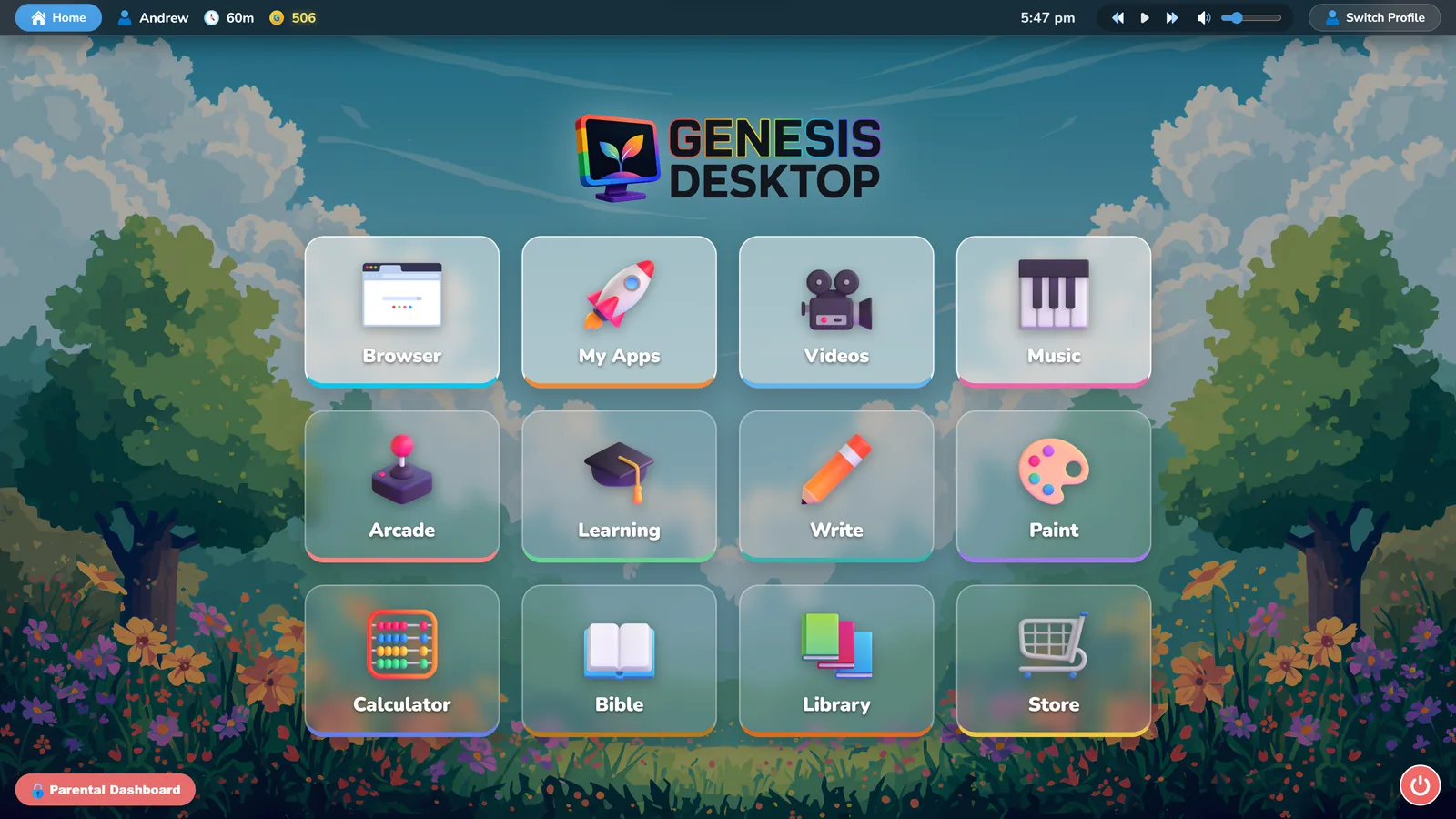
Five minutes to a safer computer.
Run the setup
Open GenesisSetup.exe from your Downloads folder. It downloads Genesis Desktop (792 MB) and starts the installer, so keep the computer online until it's done. Choose Yes when Windows asks to let it make changes. It installs for every account on the computer.
Choose Home or School
On first launch, pick Home for your family or School for a classroom lab. You can switch later.
Set your Parent PIN
Enter your licence key, create the PIN that guards the exit, and add a profile for each child. That's it.
Windows shows a SmartScreen notice for any installer it hasn't seen many times yet, however well signed. Choose More info → Run anyway. Before you do, check the publisher line: it will read 2545288 Alberta Ltd, the company behind Genesis Desktop. That signature is Microsoft-verified and proves the file is ours and unaltered; the notice goes away on its own as more families install.
Norton, Bitdefender, McAfee and the rest judge a file partly by how many people have already run it. Genesis Desktop is large and newly published, so some of them hold the installer back before anyone has examined it. That is a caution about how new the file is, not something found inside it — the publisher line always reads 2545288 Alberta Ltd.
The fix is the same everywhere: open your security app, find the list it keeps of blocked files, restore GenesisSetup.exe, add it to the allowed list so it is not caught again when you run it, then start the installer. You should never need to switch your protection off — allowing this one file is enough.
If Genesis Desktop Setup says a security program removed the download, it was the installer it fetched that got held back: restore the file whose name starts with genesis-desktop- the same way, then press Try again.
- Norton — Security → History, switch the list to Download Insight or Quarantine, select the file, then Restore. Choose “Restore & exclude this file” so it stays allowed.
- Bitdefender — Protection → Antivirus → Open → Quarantine to restore it, then Settings → Manage Exceptions to add it.
- McAfee — My Protection → Quarantined items, tick the file, then Restore.
- Avast or AVG — Protection → Virus Chest to restore it, then Menu → Settings → General → Exceptions.
- Kaspersky — Quarantine to restore it, then Settings → Threats and Exclusions → Manage exclusions.
- Malwarebytes — Detection History → Quarantined items → Restore, then add it to the Allow List.
- Windows Security — Virus & threat protection → Protection history, open the blocked item and choose Actions → Allow.
Menu names shift a little between versions — look for the words quarantine, history or exclusions. If it will not budge, email [email protected] and we will walk you through it on the phone.
Genesis on your Android tablet.

The same Genesis on a 10- or 11-inch Android tablet: the apps, read-aloud in the tablet's own voices, websites that stay inside your garden, and Pin Genesis to keep it on screen. It's new, so tell us anything that feels rough: [email protected].
Download for Android tablets ↓Install it on the tablet
Open this page on the tablet and tap Download. Chrome warns about any app file: choose Download anyway, open it, and let Chrome install from this source when Android asks. On a Samsung tablet, first turn off Auto Blocker (Settings › Security and privacy).
Set it up
Open Genesis, choose your family, enter your licence key (or start the free trial), create your Parent PIN and add each child. Your Genesis Family app sees the tablet like any other computer.
Keep it on screen
In the Parental Dashboard › System, press Pin Genesis. For the strongest lock, also make Genesis the only app in Samsung Kids or Google Family Link, and give the tablet a screen-lock PIN.
- Updates — Genesis checks for a new version itself; a parent installs it from Parental Dashboard › System. On Samsung tablets you may need to turn Auto Blocker off again for that moment.
- Amazon Fire tablets — not yet: Amazon Kids only takes apps from the Amazon Appstore. Genesis is coming there and to Google Play.
- Signed by us — the app is signed with our own key, and Android will only ever update it with a version signed by the same key.
Nothing more to install.

Genesis Family
See who is signed in, pause every computer at dinner, set weekday and weekend rules, approve website requests and award points — from your phone.
Open Genesis Family →
Genesis Teacher
Run classes, set the allowed websites and see every student computer from one screen. Sign in with your school's teacher account.
Open Genesis Teacher →